> ## Documentation Index
> Fetch the complete documentation index at: https://specterops-bp-2735-release-notes.mintlify.site/llms.txt
> Use this file to discover all available pages before exploring further.
# Use Google SecOps with BloodHound Enterprise
> Learn how to investigate BloodHound Enterprise findings in Google SecOps by using cases, alerts, events, playbooks, and actions.
 After you complete the [installation and configuration](/integrations/google-secops/configure), Google SecOps begins receiving BloodHound Enterprise Attack Path data through the connector. This page explains how that data is organized and how analysts can work with it during an investigation.
## Understand the investigation structure
The integration organizes BloodHound Enterprise findings into Google SecOps cases, alerts, and events.
| Object | Purpose |
| --------- | --------------------------------------------------------------------------------------------------------------------------------------------------------------------- |
| **Case** | Groups related BloodHound Enterprise findings for investigation. With alert grouping configured, Google SecOps groups related alerts into one case per source domain. |
| **Alert** | Represents a unique BloodHound Enterprise finding or path title within a case. |
| **Event** | Captures an individual Attack Path occurrence and its supporting details, such as the involved nodes and object IDs. |
## Review cases, alerts, and events
Use the following workflow to inspect the findings created by the connector.
With alert grouping configured, a case is created for each unique domain. The case contains alerts for each distinct BloodHound Enterprise finding or path title, and the events under those alerts capture the details of each Attack Path occurrence.
1. Open your Google SecOps dashboard.
2. Select **Cases** from the navigation menu.
3. Review the list of cases created by the BloodHound Enterprise connector.
Each alert corresponds to a distinct BloodHound Enterprise finding or path title.
1. Open a case for the domain that you want to investigate.
2. Review the alerts in that case.
After you complete the [installation and configuration](/integrations/google-secops/configure), Google SecOps begins receiving BloodHound Enterprise Attack Path data through the connector. This page explains how that data is organized and how analysts can work with it during an investigation.
## Understand the investigation structure
The integration organizes BloodHound Enterprise findings into Google SecOps cases, alerts, and events.
| Object | Purpose |
| --------- | --------------------------------------------------------------------------------------------------------------------------------------------------------------------- |
| **Case** | Groups related BloodHound Enterprise findings for investigation. With alert grouping configured, Google SecOps groups related alerts into one case per source domain. |
| **Alert** | Represents a unique BloodHound Enterprise finding or path title within a case. |
| **Event** | Captures an individual Attack Path occurrence and its supporting details, such as the involved nodes and object IDs. |
## Review cases, alerts, and events
Use the following workflow to inspect the findings created by the connector.
With alert grouping configured, a case is created for each unique domain. The case contains alerts for each distinct BloodHound Enterprise finding or path title, and the events under those alerts capture the details of each Attack Path occurrence.
1. Open your Google SecOps dashboard.
2. Select **Cases** from the navigation menu.
3. Review the list of cases created by the BloodHound Enterprise connector.
Each alert corresponds to a distinct BloodHound Enterprise finding or path title.
1. Open a case for the domain that you want to investigate.
2. Review the alerts in that case.
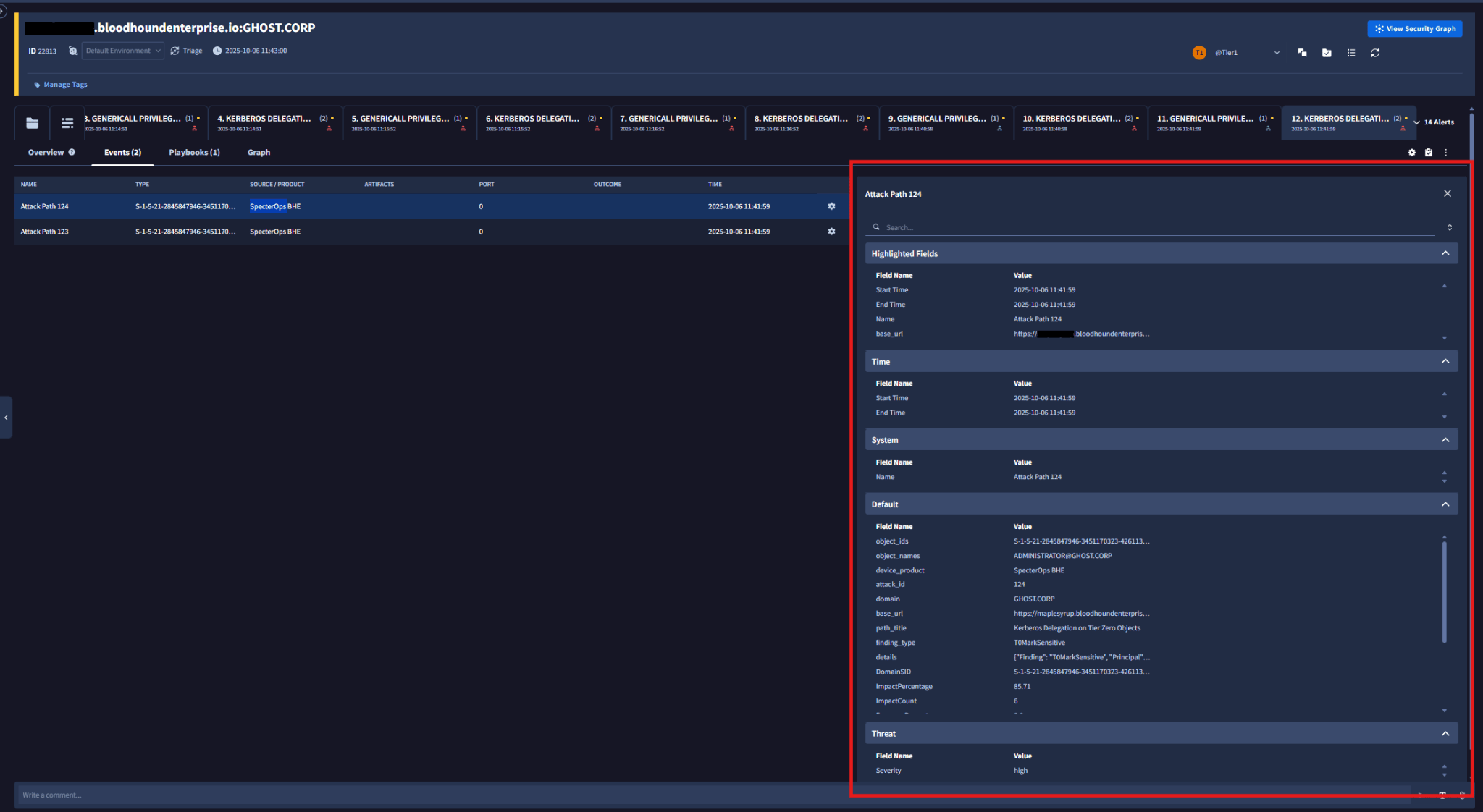
 Event details include the step-by-step path traversal and identifiers such as `object_id`.
1. Open an alert in the case.
2. Review the events listed under that alert.
Event details include the step-by-step path traversal and identifiers such as `object_id`.
1. Open an alert in the case.
2. Review the events listed under that alert.
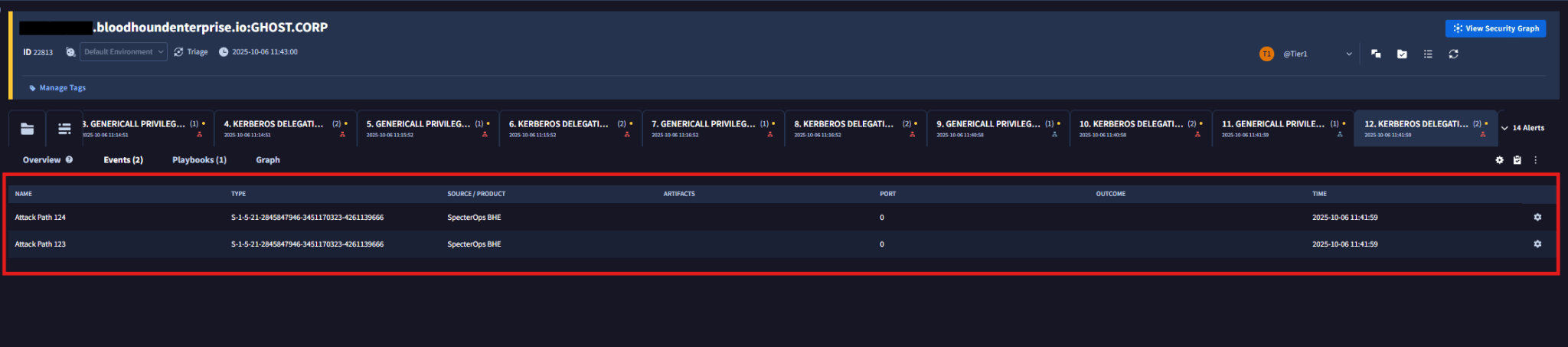 3. Double-click an event to open the full Attack Path details.
 ## Work with playbooks
The **BloodHound Attack Path Alerts Playbook** can run against generated cases. You can also create your own playbook if you want to extend the workflow in Google SecOps.
## Work with playbooks
The **BloodHound Attack Path Alerts Playbook** can run against generated cases. You can also create your own playbook if you want to extend the workflow in Google SecOps.
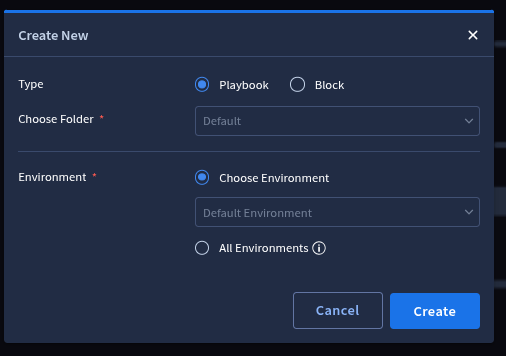
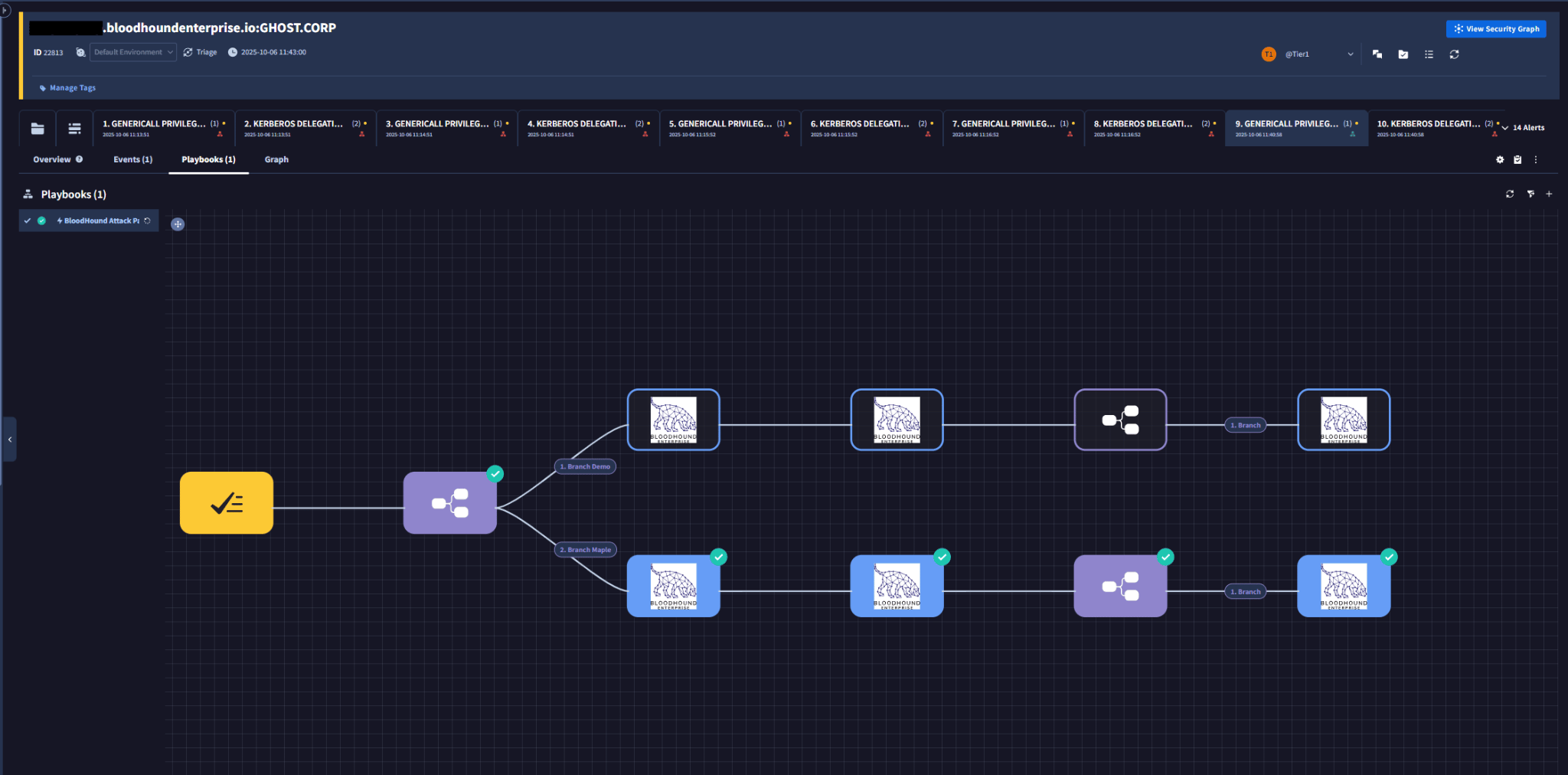 1. Go to **Response** > **Playbooks**.
2. Click the add (**+**) icon.
1. Go to **Response** > **Playbooks**.
2. Click the add (**+**) icon.
 3. Select **Playbook** as the type and click **Create**.
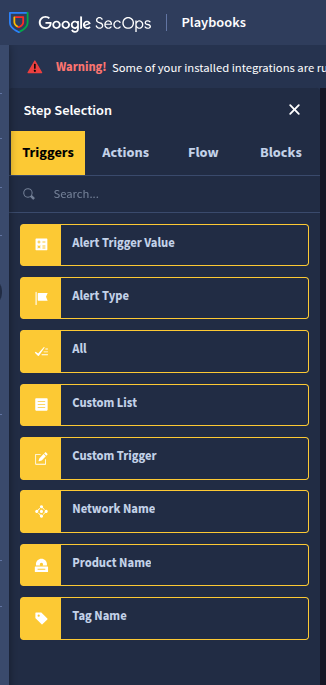
 4. Build the custom playbook by adding components from **Actions**, **Triggers**, **Blocks**, and **Flows**.
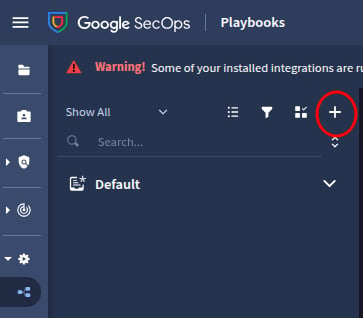
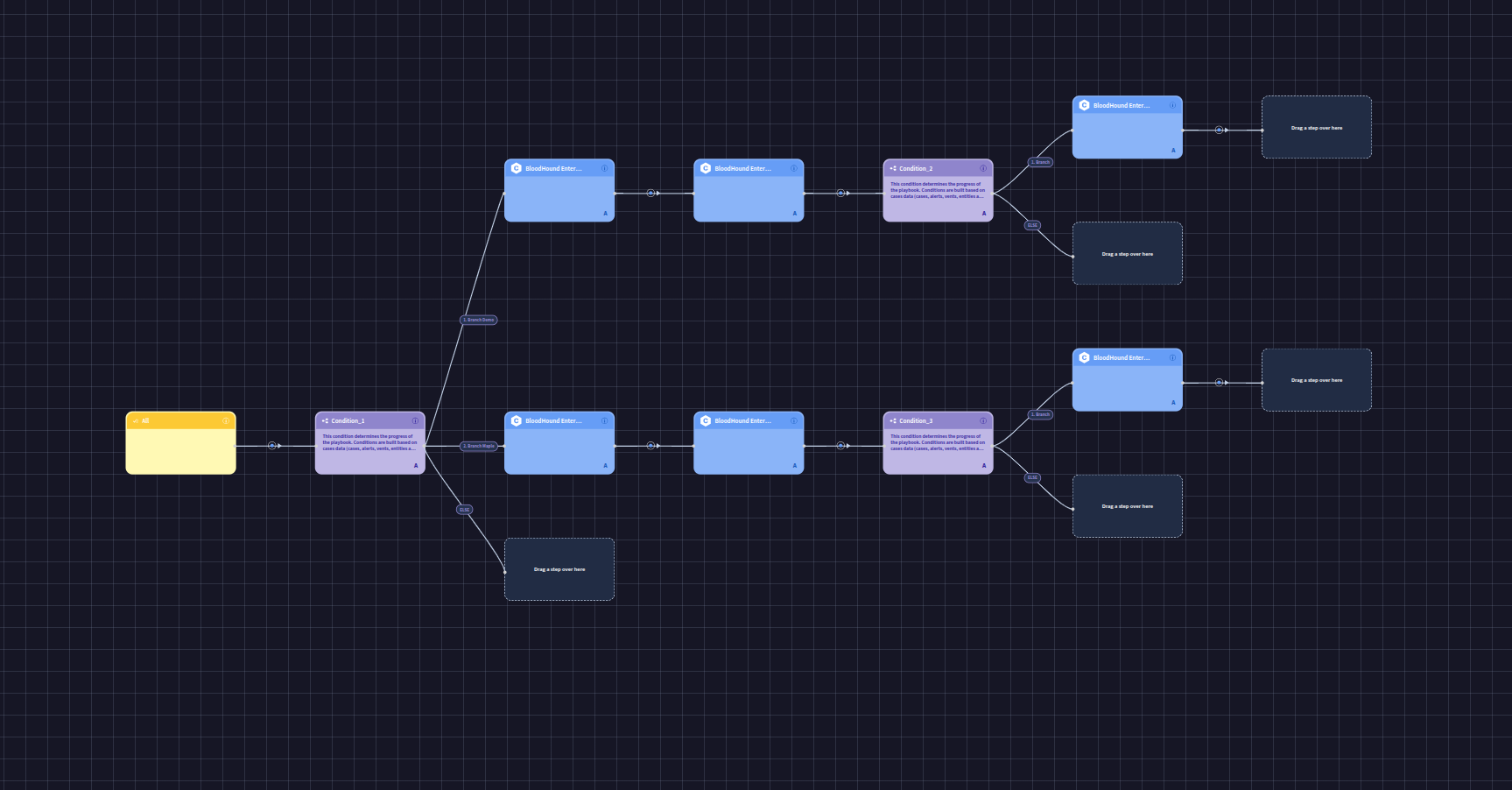
 After Google SecOps creates the cases, one playbook runs for each case.
The following example shows the consolidated playbook results for one case.
After Google SecOps creates the cases, one playbook runs for each case.
The following example shows the consolidated playbook results for one case.
 ## Run BloodHound Enterprise actions
The integration includes on-demand actions that help analysts enrich investigations with data from BloodHound Enterprise.
| Action | Description |
| ----------------------- | ----------------------------------------------------------------------------------------------------- |
| **Ping** | Verifies connectivity to the BloodHound Enterprise server. |
| **Get Object Id** | Retrieves the object ID for a named node, such as a user, group, or computer. |
| **Does Path Exist** | Checks whether a shortest path exists between two specified nodes in the BloodHound Enterprise graph. |
| **Fetch Assets** | Retrieves detailed information about an asset based on its object ID. |
| **Path Does Not Exist** | Logs that no shortest path exists between the specified nodes. |
## Run BloodHound Enterprise actions
The integration includes on-demand actions that help analysts enrich investigations with data from BloodHound Enterprise.
| Action | Description |
| ----------------------- | ----------------------------------------------------------------------------------------------------- |
| **Ping** | Verifies connectivity to the BloodHound Enterprise server. |
| **Get Object Id** | Retrieves the object ID for a named node, such as a user, group, or computer. |
| **Does Path Exist** | Checks whether a shortest path exists between two specified nodes in the BloodHound Enterprise graph. |
| **Fetch Assets** | Retrieves detailed information about an asset based on its object ID. |
| **Path Does Not Exist** | Logs that no shortest path exists between the specified nodes. |